Wednesday, October 5, 2011

Useful Google Plus Tips and Tricks | Google+ Tips and Tutorials


Google+
This post contains some useful Google Plus tips and tricks or some useful Google+ Tutorials. Google Plus is now become the most growing social network and gains huge users in the short period of time while in the beta mode. A truth about this blog is that we have included some articles about facebook tips and tricks and found targeted visitors from major search engines but after lanuch Google Plus beta mode we have included Google Plus tips and tricks in this blog and look the major effect that my visitors from search engines increased as a rocket speed so this live experience shows users are searching more and more about Google Plus tips and tutorials in these days. 
The main thing on social networking sites is the privacy of their users which is easier in Google Plus to set what you want to show or hide of your data to the web. Facebook did many changes in their privacy setting and launch video chat with skype after launch Google Plus beta mode because if facebook don't take any action then for sure Google Plus reach to the top level with easiest ways but there is no doubt facebook is struggling to stand against Google Plus. By the way check out some most useful Google Plus tips and tricks listed below.


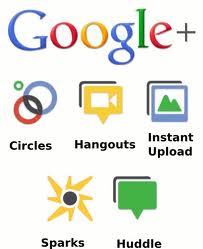
1.   Basic Definitions of Google Plus Features as Circles, Hangout, Sparks

Before starting about Google Plus Tutorials lets start with what is Google Plus Project and some basic definitions of its features. Just follow

What Is Google+?

Google+ is a tool you can use to organize your online contacts. You can upload your pictures and videos to share with friends, join in on a group video chat to plan your next outing, or just hang out!


  • +Circles
Enable you to organize contacts into groups for sharing across various Google products and services. Although other users can view the list of people in your collection of circles, they cannot view the names of those circles. Organization is done through a drag-and-drop interface.


To understand Google Plus and Circles better, go to the Settings Gear and select Profile and Privacy. Look for "See how your profile looks to other users." Type in a user name from different circles and click Preview to see what your profile looks like from the specified user.


  • +Sparks

A front-end to Google Search, enabling users to identify topics they might be interested in sharing with others. “Featured interests” Sparks are also available, based on topics others globally are finding interesting.

Sparks is a great way to find information to help in your professional development towards building your e-capability, all information is current and reliable.

  • +Hangouts

Used to facilitate group video chat (with a maximum of 10 people participating in a single Hangout at any point of time). However, anyone on the web could potentially join the 'Hangout' if they happen to possess the unique URL of the Hangout.


  • +Huddle

Huddle is a a group messaging feature available within the Google+ mobile app. Rather than sending text messages to each person in a circle the user sends Huddle messages to the group. This can be advantageous when trying to setup where and when to go out.

  • Google+ Mobile


Accessing Google+ on one’s Mobile Phone or Device (Currently Android and Web Only)

Download the Google+ mobile application from the Android Market. Once you launch the application it will ask which account you wish to sign in with, select the account.


  • Enable Push Notifications

Google+ mobile app -- Launch Google+ on your phone, press the menu button and go to Settings. Enable or Disable notification/vibration/ringtone for Google+ and Huddle notifications.

Google+ (plus.google.com) -- Click the ‘Options’ cog in the top right hand corner of the screen and select ‘Google+ Settings’. Under ‘Set delivery preferences’, add your mobile number and choose Push Notifications or SMS Notifications. Then in the ‘Receive Notifications’ section, choose which notifications you would like to receive by selecting the checkbox in the phone column for each item.


Getting Started with Google+

Tips

Google+ can be accessed from http://google.com/+ or http://plus.google.com or http://google.com/plus or, for mobile device, from http://m.google.com/plus.

To share Google+ posts click the “Time link” button and use the Google Shortener Extension for Chrome browser and share posts to Blogger, Tumblr, Facebook and others.


Creative ways to use Circles


Create an “*Inbox” circle and include the people you’d like to see every post from. The friends, family, and acquaintances circles are on top by default.

Create a "Read later" circle and include no other person (Google+ calls it an empty circle). When you see a post you want to read later, share it only with the "Read later" circle. Then when you have some time, open that circle and read through (and delete) the saved posts.

Similarly, create an (empty) "Drafts" circle. When you have an idea for a post, but no time to write it, draft a rough version and share it to the "Drafts" circle. Edit the draft by using "Edit this post" from the drop down menu. Then, when the post is complete, copy it to a new post that you can then share to your circles and delete the draft post.

Yet again, create a similar (empty) circle called “Bookmarks” so you can go back and find that tidbit of information to read and use again and again.

If you would like to mute future notifications on a particular post you can do so by opening notifications, then opening the particular notification you wish to mute. Look at the bottom right hand corner of the notifications box. There will be an option to mute that notification.


Formatting

Google+ uses the follow character operations to perform italicizing, bolding, or striking through text:


_ italic text _ ➜ italic text
* bold text * ➜ bold text
- strikethrough text - ➜ strikethrough text
_*italic bold text*_ ➜ italic bold text


Formatting symbols only work when the formatted string is encapsulated by spaces, therefore surrounding the symbols by parentheses or brackets escapes the formatting.


[_ italic text _] ➜ [italic text]
** bold text ** ➜ *bold text*
_()(*- strikethrough text -*)()_ ➜ ()(*-strikethrough text-*)()
foo_*italic bold text*_bar ➜ foo_*italic bold text*_bar
**cough** ➜ *cough*


Shortcuts


Note: These shortcuts apply to the desktop version of Google+ only.

@Anil Mishra or +Anil Mishra ➜  (press @ or + to link to a person in a post or comment) but they must be a google plus member for this to work otherwise the hyperlink of their name just turns into plain text.

After you post, click the little drop-down arrow (▽) in the upper right of the post to disable comments or disable re-sharing (i.e., for things you don't want to spread beyond your specified audience).

Press “q” to go directly to the chat box

Press , then after writing a comment on a post to quickly submit it. (faster than clicking the Post Comment button every time)

Press twice and then to cancel writing a comment.

Press space to drop down a page. (Applies to all web pages)

Press +space to move up a page. (Applies to all web pages)

If you want to post directly to specific friends, just type the first letter of their name, a drop-down list will appear, keep typing until you see their name, then select the name and click to send message or begin chat. Alternative quick step, if necessary, click to remove existing “addressees” (i.e. Public, Circles, etc) so that the post is addressed to no one. The in the message area using the + or @ technique described above, start typing their name until you see it, select it, and it will then be included in the message as well as the addressees.

While moving through posts using ‘j’ (next post) and ‘k’ (previous post), you can start     a comment by pressing .

Use the mouse scroll wheel to navigate through photo slideshows


Privacy

A core element of Google+ is its privacy features, which have been integrated deeply into the product. Google+ gives users extensive control over these features.

Click edit in your profile to change which circles can view what personal details. Your name, gender, and profile picture have to be public, everything else can be restricted. You can also opt out of appearing in the search results here.

If you would like to send a message to another user, just put their name into the destination field of your posting. If the recipient is not a user of Google+, enter their email address. To save typing the email address every time, you can add them as a contact on the circles page.

If you want the permanent link to a post, click on its timestamp to see the single post. You can copy the URL from your browser to share the permalink (alternatively, you can select “Link to this post” from the drop-down menu at the top left of the post)

You can link directly to your profile using http://profiles.google.com/.

There are also non-official shorteners that use the profile number you can find when viewing your profile. (For example go to http://gplus.to/)

To understand Google Plus and Circles better, go to the settings gear to Settings -> Profile and Privacy. Look for "See how your profile looks to other users." Type in a user name from different circles and you will be able to see how your info is shared according to those circles.

There is a shortcut for this under the EDIT PROFILE button on a user’s profile page. It’s a greyed-out “View profile as....” box. Click on each section to see how each person or circle will view each area: About, Posts, Photos, Videos, +1s, Buzz


1.   Google+ Tips for Send/Receive Tweets in Google Plus

If you want to twitter integration as sending tweets and showing your twitter updates into your Google Plus account then you can easily integrate your Google Plus account with twitter. you don't need to leave your Google Plus account for sending tweets or showing your updates of your twitter account. Just follow Send/Receive Tweets or Show Twitter Stream in Google Plus.


2.   Google+ Tutorials for send/receive facebook updates in Google Plus

Now after twitter integration you can integrate your facebook account in your Google Plus account. You don't need to leave your Google Plus account if you want to post any update in your facebook or you want to see your facebook stream updates. Just follow Show Facebook Stream and Updates Facebook Wall from Google Plus. 


3.   Google Plus Tips for Bold/Strikethrough and Italic Text

 Different text formatting are always eye catching for your friends and for your customers so get noticed to some words for making it bold/italic or strikethrough. Just follow Make text to Bold/Italic/Strikethrough in Google Plus.


4.   Google Plus Tips and Tricks for Sending Private Messages

Did you find any option for sending private message to your Google Plus friends? No. Ok some tips is required for sending private messages in Google Plus to your friends. If some one send you private message then you will got these messages into your main stream page and the message will be seen only by you. So just follow Sending Private Messages to Friends in Google Plus.


5.   Google Plus Tricks To Get Google Plus Notification Updates on Mobile Phone

Do you want notification if some added you to in circle or if some one write comments on your updates or anything what you check options to getting notification on your mobile phone. Just follow Google Plus Updates Notification on Mobile Phones. 


6.   Google Plus Wall Status Updates By Mobile Phones via SMS

Now if you are an Indian users then you can send Google Plus updates via SMS from your mobile phones and also you can send updates to individual circles. Hope this features will be launch word wide soon! So for Indian users just follow Get Google Plus Updates from Mobile via SMS Text.


7.   Google Plus Tips for Adding Google+ Widget To Blogs

Are you a webmaster? Have you any blog? If your answer is yes, then by adding Google+ widget to your websites or blogs you can increase your Google Plus connections so for adding Google+ widget for your blogs just follow Adding Google+ Widget To Blogs. 


8.   Google+ Tutorials:Sharing your wall updates to directly facebook, Twitter, LinkedIn, Tumblr

You can now share your Google Plus wall updates directly to facebook, twitter, linkedin and tumblr. Your each updates will contain a button of "Share on..." and if you click on then you will see option to share. This is all have done by a chrome extension so you have to use chrome browser if you want this option. Now if you are on chrome browser and want to enable this feature then just follow Share Google Plus Wall Updates To Facebook/Twitter.


9. Downloading Google+ data as friends contact, albums, videos to desktop

If you want to secure your Google Plus data as your albums, your uploaded videos or your friends contact, your stream data and your profile data to your desktop hard drive before being hacked by some one. Just follow Download All Google Plus Data To Desktop Hard Drive.


10.    Google Plus Tips To Move Facebook Album Photos To Google Plus

Have you many photos in your many albums and want all photos in your Google Plus Profile. It is very difficult to save all photos to your desktop and then upload these to your Google Plus Profile. A Chrome Extension is there for easily move your facebook photos to your Google Plus account with some clicks. You have to be on chrome browser if you want to move your facebook albums to Google Plus by just simple clicks. Just follow Move Facebook Photos To Google Plus Account.


These Google Plus Tips and Tricks are regularly updated so get back after some days to this post you will see some more Google Plus Tutorials. If you want to get updates on Google Plus then you can get noticed by bookmark this page,
 Add me in your Circle on Google Plus and you can Be My Fan on Facebook and follow us on Twitter or simply get updates directly to your email address just verify your email address with us for SubscribeMy News Later.

Tuesday, October 4, 2011

How to create a screencast (video) of your website freely


If you are a blogger, social networker, web designer or just a simple guy who wants to create a video for your blog readers, website visitors, to show them how to search a particular website or search engine, database etc., then this post can really help you.


Creating a great library website video can be challenging. However, if you use one of the following free programs, you will find it much easier.


1. Sketchcast.com Use this cool tool and site to create videos with sketches made by creating stick figures.


2. Flixtime.com Use this site to create a video with pictures, text, audio or music.


3. Animoto.com Another site similar to flixtime.


4. OneTrueMedia.com Another site similar to flixtime and animoto however, one true media allows you to create longer videos for free.


5. Prezi.com This nifty site lets you create videos that are a mixture of powerpoint and interactive video.


6. Screenr.com Use this handy site to record screen capture videos. The videos are also hosted on the web by ScreenR.


7. Masher.com Another site similar to some of the others only with a few unique features.


8. Stupeflix.com Use this site to create videos that are a combination of photos and videos.


9. Slidesix.com Create videos out of your power points.


10. Camstudio.org Use this free download software to create screen capture videos. This program works a lot like camtasia, only it’s free and does not have as many editing features.


What is your favorite way to create library videos?

Monday, September 26, 2011

How to Enable Facebook Timeline on your Account

In the Facebook F8 Developer Conference lots of new features of the Facebook are announced in it but the one which got most hype is the New Facebook Timeline which is gonna replace your current profile. As the name suggests, New Facebook Timeline will change your profile into a series of events which is a new concept.


Timeline basically changes the way we see our Facebook wall. The changes are quite radical. At the moment it is now available for all users and might be made available in a couple of weeks. Thankfully, for the curious minded there is a hack which allows Facebook to enable Timeline feature on your account.


Facebook is soon gonna launch the New Facebook Timeline to all of its users. But if you cannot wait that long then, you can enable the New Facebook Timeline now also. Just follow the instructions given below to enable the New Facebook Timeline now in your profile.

1. Login to your Facebook account and then Click Here


2. On the new page, click on the "Allow" the give the permission to the Developer app.

3. Click on the "Create New App"

4. Select whatever name you want for the "Display Name" and "Namespace". Check the "I Agree" box and click on the Continue button.

5. On the new page, click on the "Open Graph" in the left sidebar


6. On the new page appearing, fill any detail you want in the two boxes and click on the "Get Started".


7. When the next page appears, scroll down and click on the "Save Changes and Next". Follow the same thing on the next screen which comes.


8. On the next screen, just wait for few minutes and then go to your homepage.


9. On your homepage, you will see a notification to enable the New Facebook Timeline. Just click on the "Get It Now" button and you will have the New Facebook Timeline enable in your profile. Enjoy!!!!!

Thursday, September 15, 2011

The Google +1 What, How, Where and Who?: All you want to know about the +1 Strategy of Google


What is Google +1?


Google +1 is yet another attempt to make Google more social. It’s Google’s version of the Facebook “likes”, a simple feature that’s very powerful because it’s part of a social network. Google will show +1 buttons next to all search results and ads, while encouraging other sites to include the buttons. All +1′s are public and they’re tied to Google Profiles.

The goal is to use this data to personalize search results and ads by recommending sites +1′d by your friends. Google Social Search already does this, but there’s no support for Facebook likes, so Google had to come up with a substitute.


It’s a simple way to Like Google search results?


When you’re signed into your Google account, every Google search result will now have a +1 icon next to it (right now you have to activate in Google Experimental). If you find the search result useful or just enjoy the linked site, you hit the +1 icon. Google says by +1-ing a result you’re giving it a recommendation, a stamp of approval. More +1′s on a result means the site is more interesting.


Is it Social?
Yes, it is definitely social. You can see what your friends +1′d which ideally lends more credence to a particular search result. Since Google displays so many sites, these little +1′s will help you sift out the crappy ones (if you didn’t banish them already). Imagine if your best friend found a link interesting and +1′d it. When you stumble upon that in the future, you’re probably going to click it.

Is it a new Social Network?
It is not a social network. When the Google +1 project first started (as Google Me), it was billed to be Google’s Facebook killer. Clearly, it’s not. The +1 system works more like Likes in Facebook or Diggs in Digg, meaning to say it’s a bare bones simple way to show that you like something. That’s good! Google became the king of search because it was simple. +1 is simple.

Will it help Google to target better ads?

Yes, definitely. You can also +1 ad’s, which combined with the data of your usual +1s of search results, will let Google learn more about you and better target their ads. It’s sort of like data research masked as a feature, like when Google offered free Google 411s to improve their voice recognition software, Google +1 improves their ad delivery system.

Google isn’t done with +1 yet. They’ve learned from previous mistakes in Google Buzz and Google Wave where they dug a grave for those products by overhyping them. This time, by starting small with a simple +1 icon only available on Google search results, they can quietly go about their business and slowly add to it (like +1-ing directly from a website, from Chrome, from apps etc.).


Will it change the way we you Google?

Definitely not, Google +1 is another sign that Google wants to evolve into a more social search engine. All those +1′s they keep track of will not only help Google make their searches better, but also make them more relevant to your social circle. As the Internet gets clotted in cobwebs, having friends personally +1 the best sites keeps Google from falling too far behind Facebook and Twitter in social sharing.

 This  +1  is a small button that will reside next to each and every Google Search result. If you like the result, you click the +1 button and it gets shared with your social circle — and the public (more on that in a bit).


The button also works on the ads that appear in Google Search. If you like those and think they can be useful to friends, you can also hit the button there to highlight them. That may sound like something no one would ever do, but the implementation is actually pretty smart. You see, since the pages that are linked to in Google ads also appear in Google’s regular index, if a page has ever been +1′d as a regular result, it will also show up as +1′d in the ad.
But let’s take a step back for a second. Google +1 is an extension of what Google has been doing for a while with Social Search, Google’s Matt Cutts tells us. In their most recent update to that feature, results were surfaced and highlighted when someone in your social circle shared something on a social network like Twitter or Buzz. “People really like this aspect of social search,” Cutts says.
At the same time, the current social mechanisms require some work to be useful — you have to explicitly share a link somewhere. You might not want to do that with every link you like. And that’s where the +1 button comes in, it’s a simple way to indicate you like a page and think it might be useful to others. Again, basically a “like” button.


Cutts wants to be very clear that this +1 data is public. While a big aspect of +1 is sharing results with your social graph (which is still sort of confusing given that Google isn’t an actual social network, so it’s Gmail chat contacts, Reader and Buzz friends, etc) , it is also about using that data in aggregate to highlight better results for everyone. For example, on a result that has been +1′d, you’ll see if any of your friends have +1′d it (in a similar way to the current Social Search look with people’s tiny profile icons under the result itself). But you’ll also see that X number of other people that aren’t in your social circle +1′d it as well.

Google+ updates

How can I keep up to date with Google+ changes?

To preview the latest updates to the Google+ platform, subscribe to the Google+ Platform Preview group. New features will be enabled on your account and announced to this group. To receive updates specifically about the +1 button, please subscribe to the Google Publisher Buttons Announce Group

The +1 button and search results

How does +1 affect search results?

+1 helps people discover relevant content—a website, a Google search result, or an ad—from the people they already know and trust. The +1 button appears on Google search, on websites, and on ads. For example, you might see a +1 button for a Google search result, Google ad, or next to an article you're reading on your favorite news site.

Adding the +1 button to pages on your own site lets users recommend your content, knowing that their friends and contacts will see their recommendation when it’s most relevant—in the context of Google search results. In addition, a user's +1's appear on the +1 tab of their Google Profile. While +1’s are always public, users can choose to make the +1 tab visible or invisible on their profile.

When a signed-in Google user is searching, your Google search result snippet may be annotated with the names of the user's connections who've +1'd your page. If none of a user's connections has +1'd your page, your snippet may display the aggregate number of +1's your page has received.

Does +1 affect my site's performance in search?

Content recommended by friends and acquaintances is often more relevant than content from strangers. For example, a movie review from an expert is useful, but a movie review from a friend who shares your tastes can be even better. Because of this, +1's from friends and contacts can be a useful signal to Google when determining the relevance of your page to a user’s query. This is just one of many signals Google may use to determine a page’s relevance and ranking, and we’re constantly tweaking and improving our algorithm to improve overall search quality. For +1's, as with any new ranking signal, we are starting carefully and learning how those signals affect search quality.

Does +1 affect how Google crawls my site?

When you add the +1 button to a page, Google assumes that you want that page to be publicly available and visible in Google Search results. As a result, we may fetch and show that page even if it is disallowed in robots.txt.

How will the +1 button affect my traffic?

Personalized annotations next to your page in search results may increase your site's visibility and make your site's snippet more compelling, which may in turn increase the odds that users will click through to your page.


To view how +1 affects your search traffic, you can use the +1 Metrics tool in Webmaster Tools. Available metrics include:
·   Search impact: See the pages on your site that received the most impressions with a +1 annotation, and see how +1 annotations impact click through rate (CTR).
·         Activity: See the total number of +1's received by pages on your site.
·     Audience: See aggregated information about people who have +1'd your pages, including the total number of unique users, their location, and their age and gender.

How does the +1 button affect my ads?

The +1 button itself will appear next to your headline on search ads. Personalized annotations will appear beneath your Display URL. For example, Maria +1's a page selling a neat laptop holder on a website. When a search ad with that same URL appears, her friend Sam might see the ad with the note "Maria and 28 other people +1'd this."

Who sees +1?

Who can see the +1 button in Google Search?

The +1 button shows up for signed-in Google users of using a modern browser.


What's an annotation?

Because people trust their friends’ recommendations, personalized annotations display the faces of friends and social connections who have already +1’d a piece of content.


Google tries to display +1’s to people (specifically those in the user’s social connections) who would find them most useful. We hope that by making these recommendations more discoverable, users will be even more engaged with your site.

Annotations can appear in a couple of ways.
·     When a user hovers over the +1 button on a page, we’ll display an annotation showing the faces of friends who have +1’d that page. You don’t need to do anything to make this happen.

·       You can also add inline annotations that appear next to the +1 button on your page. To enable these, you’ll need to update the +1 button code.

Who can see annotations from +1 buttons?

Everybody can see aggregate annotations. Signed-in users also see personalized annotations from:
·         People in your Google+ circles
·         People who have you in a circle in Google+.
·         People in your Gmail (or Google Talk) chat list.
·         People in your My Contacts group in Google Contacts.
·         People you're following in Google Reader and Google Buzz.


Are +1's public?

Yes, Google may show personalized annotations to any signed-in user who has a social connection to a +1. However, any Google user can choose whether or not to display their +1's on their Google profile.

Adding the +1 button to a site

How do I add the +1 button to my site?

Just grab a snippet of code.
Where should I put the +1 button on my pages?

You know your page and your users best, so we recommend putting the button wherever you think it will be the most effective. Above the fold, near the title of the page, and close to sharing links is often a good location. It can also be effective to place the +1 button at both the end and the beginning of an article or story.
+1 is a public action, so you should add the button only to public, crawlable pages on your site. Once you add the button, Google may crawl or recrawl the page, and store the page title and other content, in response to a +1 button impression or click.
Can I place multiple buttons on a single page that all +1 different URLs?

Yes, but you'll need to edit the button code. Use the href attribute to specify the target URL. For example, if your home page has a module linking to your blog, and you want to add a +1 button to that module, edit the value of the href attribute to point to your blog's URL, like this:

What languages is the +1 button available in?

The +1 button and annotations are available in 40 languages.

How often will Google crawl my +1'd pages?

+1 is a public action, so you should add the button only to public, crawlable pages on your site. Once you add the button, Google may crawl or recrawl the page, and store the page title and other content, in response to a +1 button impression or click.

How does +1 work with Buzz? Do we still need the Google Buzz button?

Buzz buttons are used for starting conversations about interesting web content ("Hey guys, what do you think about this news story?"). +1 buttons recommend web content to people in the context of search results ("Peng +1’d this page"), and +1's from social connections can help improve the relevance of the results you see in Google Search. You can use the +1 button, or the Buzz button, or both—pick what’s right for your content.

Some of my users get a security warning when they view pages with the +1 button. How do I get rid of this?

The +1 button code requires a script from Google's servers. You can include this script using either http:// or https://, like this:
If your web page uses https://, some browsers and verification tools will show an error when any assets on the page are called via http://. If your site serves pages via https://, make sure that the +1 button code on those pages also uses https://. (In fact, it's fine to use https:// in the button code for all pages, even if they are only served via http://.)

Sharing

How can I enable sharing from the +1 button?

You don’t need to do anything to enable sharing to Google+ from the +1 buttons on your site. We've updated the +1 button code so that users with a Google+ account can share your content on Google+ just by clicking the +1 button and then clicking Share on Google+.

Users can add comments, pick the right circles, and share to the Stream on Google+, starting new conversations about your content.


Note: When someone shares your content to Google+, we'll display the URL of your page in the post. If your page isn't yet public, make sure to share it with only a limited number of people. Otherwise, your staging server URL will be visible on Google+.

Can I customize the site description that appears when a user shares my content?

Google attempts to find the most useful and descriptive +snippet to display. If you have marked up your content rich snippets using the  schema.org vocabulary, Google+ will use the name, image, and description properties from the generic  Thingtype.

Alternatively, Google+ (though not Google Web Search) can use Open Graph metadata to create the +snippet. It can also use the contents of title and meta description tags.

Is sharing private?

+1 is a public action, so Google may show personalized annotations to any signed-in user who has a social connection to a +1. However, any Google user can choose whether or not to display their +1's on their Google Profile. Additionally, users can directly control who they share your content with by specifying circles. As a result, the +1 is a public action, but sharing to Google+ is controlled by the user.

Recommend this

Related Posts Plugin for WordPress, Blogger...