Showing posts with label facebook. Show all posts

Sunday, September 22, 2013

How to Cite YouTube and other Sources [Video]

Any time an idea is borrowed from a source—like a newspaper article, a YouTube video, a tweet, or a class lecture—that source needs to be cited. But that’s not all. The way citations are written is also important. Not only are there different citation formats to follow, like APA or MLA, but the citation of different source types, whether a blog post or a speech or a photograph, also vary, even if just slightly, e.g. capitalization. In this video, English instructor Renee Swensen explains citation styles and documentation, essential knowledge for any writer to have in order to avoid plagiarism.

Watch the video:


How to Cite YouTube & Other Sources from Turnitin on Vimeo.


READ ALONG…
Citation Styles and Documentation: Avoid plagiarism by learning how to cite YouTube, Facebook, Twitter and scholarly journals


MLA, APA, CMS, CSE etc.  If you have heard of these before, you have likely been asked to write a paper using them.  What do these acronyms stand for?

Let’s talk about your different courses for a moment.  You might have an English class, a psychology class, or a history class.  Different courses are housed under different fields of study and different fields have different groups who meet to decide how scholarly writing in that field should be presented.

For example, English falls under the Modern Language Association, psychology falls under the American Psychological Association.  These associations have manuals that explain how papers should be written in those disciplines.

CMS is called Chicago Manual of Style, which a history course might call for or CSE for Biology and other science courses.

The trick with these documentation styles is realizing you don’t have to memorize the style, you simply need to follow the guidelines, and use these guidelines as a reference.  That means you might need to look this information up each time your write an academic paper.

Guidelines will specify how the paper should be laid out, such as spacing, margins, headers, page numbers, etc.  It will also detail how to document any outside sources you used in the paper, such as in-text citations, footnotes, works cited pages or reference pages.

Knowing how to lay out the paper according to the documentation style is one thing, but knowing how to cite sources is quite another, and usually the most challenging for students.

Let’s walk through a practice source and look at how to break that source down to determine what kind of citation I need.  We’ll use APA as an example.

The first thing you need to do when looking at a source, especially one you accessed online, is determine what type of source it is.

This source gives you some clues.  It is a double-sided page, has an abstract or summary, a list of references, the title of the source, the main source may even have “journal of…” or looks like it has a specific audience of scholars.  This is definitely an academic journal.  You need to be able to differentiate between a journal, article in an online newspaper or a blog.

In order to cite the source correctly, you need to look up the type of source in a reference manual, so you can see what information is required in the citation.  These manuals often contain model citations for you to follow.

For a journal article I need to be able to match the information in the citation example with the information for my particular source.

A citation for a journal article looks like this:

Author. (year of publication). Title of article. Title of Academic Journal. Volume (Issue), pages.

Author’s last name and initials, the year it was published, the title of the articles (not in capital letters), the title of the academic journal italicized, the volume number, the issue number in parentheses, and the page numbers.  Luckily, I don’t have to memorize all this, just match my source with this sample.

Mishra, A.

The author of the article is Mishra, A. The year, (2013).  The title is cloud computing for library resources and services.  The journal title isJournal of Library, Information and Communication Technology, the volume is 5 and the issue is (1-2), with the page numbers 1-9.

An MLA citation for this journal would have some differences, such as capitalized titles, quotation marks, etc., so you need to reference up your required documentation style to get it right.

Now you have to remember that if you borrowed any ideas from a source, like a YouTube video you watched, Twitter, Facebook or a class lecture, you have to cite that source in your paper.

How to cite YouTube

APA style:

Author, A. A. [Screen name]. (year, month day). Title of video [Video file]. Retrieved from http://xxxxxxxxx

MLA style:

Last name, First name. OR Username. “Title of Video.” Title of Site. Name of institution or publisher, Day Month Year of publication. Medium. Day Month Year of access.

Just remember that you need to take the time to get your citations right to avoid plagiarism.

See how to cite other common sources, including: An interview; speeches and lectures, a painting, sculpture or photograph; films or movies; sound recordings

Wednesday, June 12, 2013

Facebook App Pipe: The simplest way to send files upto 1GB to Friends


Facebook launched, the new app “Pipe” this week which allows Facebook users to share files up to 1 GB in size through a simple drag and drop interface.


            Pipe seems to blend the best of two worlds that dominate Internet traffic: bit torrents and social networking. In an infographic published in March, Intel decoded “what happens in an Internet minute” in which it revealed that in a minute, the Internet transferred close to 639,800 GB of IP data across the globe.

            And as for data security, files transferred via Pipe never pass through Facebook servers, instead travelling directly between the connected users with the help of unspecified Adobe technology.

            The peer-to-peer file-sharing application will work with any type of file and will deliver in real-time if the friend is online. If the friend is offline, it will place the files securely in a locker and deliver it when the recipient logs in. Users need to register for the App at www.facebook.com/pipe

So how does it work? Let’s take a look.
First install the Pipe app on Facebook.
pipe1
Next select a friend to share a file with. Notice how it says whether they are “online” or “locker.” Files sent to offline friends will be stored in a digital locker for later retrieval (up to 5 days), and there’s no limit to the number of lockers you can create.
pipe2
Once you’ve chosen a recipient, select the tab to the right which is “locker” since I’m sending a file to an offline friend.
pipe3
Next choose a file and how long you want to make it available – up to 5 days.
pipe4
Once you select “Send to locker” you’ll need to notify the recipient. Recipients don’t have to have Pipe already installed to be notified they have a file waiting, but will obviously need to install to download.
pipe5
Now let’s take a look at what things look like as a recipient.
When you view the Pipe App page you’ll notice there’s a green light lit up in the “locker” tab signalling you have a file or files in your locker waiting to be downloaded.
pipe6
Click the locker tab and you’ll see what you’ve been sent.
pipe7
Click download to grab the file.
pipe8
Now you can share TV shows, movies, or entire albums with Facebook friends without having to hassle with third party sites like Dropbox, for example, that many don’t have accounts with.
Source: Zeropaid

Tuesday, December 13, 2011

Schemer – Google’s New Creation to Search for Activities!

Google has recently launched Schemer, a new service which allows users to add and discover activities based on their location. For instance if I want to learn how to play a guitar then I can create a scheme on my schemer profile about it. My circle of friends from Google+ and services tied to the site can recommend me a guitar shop or a class, where I could learn how to play it. My friends and others (if the activity is publicly shared) can even comment on my scheme with helpful tips.


Once someone signs up with Schemer, that user can also view a host of activities planned by their friends on Google+. You might be able to tick off things you have done among them.

Local and Social


I guess the idea behind Schemer is to help people discover new activities they want to do. For instance if I was visiting a particular city, I might be served up city specific activities which I could find interesting. Schemer is also neatly wrapped with Google+, adding another reason to get on Google’s social network.

Google might also be trying to create something like Foursquare, which is also a location based social network. With Schemer, Google might also be able to aggregate local data for its search results, which it is not exactly really good at currently. At some stage we can probably expect Schemer to be integrated with Google+ profiles and relevant Mobile apps.

Facebook has recently bought Gowalla, another location-based social network. That would make it a competitor to Google’s Schemer somewhere down the line.
Currently Schemer is in beta stage on invite only basis. To get into the queue visit their website and add your email id for getting an invite.

Wednesday, October 5, 2011

Useful Google Plus Tips and Tricks | Google+ Tips and Tutorials


Google+
This post contains some useful Google Plus tips and tricks or some useful Google+ Tutorials. Google Plus is now become the most growing social network and gains huge users in the short period of time while in the beta mode. A truth about this blog is that we have included some articles about facebook tips and tricks and found targeted visitors from major search engines but after lanuch Google Plus beta mode we have included Google Plus tips and tricks in this blog and look the major effect that my visitors from search engines increased as a rocket speed so this live experience shows users are searching more and more about Google Plus tips and tutorials in these days. 
The main thing on social networking sites is the privacy of their users which is easier in Google Plus to set what you want to show or hide of your data to the web. Facebook did many changes in their privacy setting and launch video chat with skype after launch Google Plus beta mode because if facebook don't take any action then for sure Google Plus reach to the top level with easiest ways but there is no doubt facebook is struggling to stand against Google Plus. By the way check out some most useful Google Plus tips and tricks listed below.


1.   Basic Definitions of Google Plus Features as Circles, Hangout, Sparks

Before starting about Google Plus Tutorials lets start with what is Google Plus Project and some basic definitions of its features. Just follow

What Is Google+?

Google+ is a tool you can use to organize your online contacts. You can upload your pictures and videos to share with friends, join in on a group video chat to plan your next outing, or just hang out!


  • +Circles
Enable you to organize contacts into groups for sharing across various Google products and services. Although other users can view the list of people in your collection of circles, they cannot view the names of those circles. Organization is done through a drag-and-drop interface.


To understand Google Plus and Circles better, go to the Settings Gear and select Profile and Privacy. Look for "See how your profile looks to other users." Type in a user name from different circles and click Preview to see what your profile looks like from the specified user.
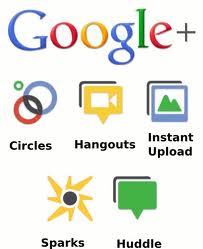


  • +Sparks

A front-end to Google Search, enabling users to identify topics they might be interested in sharing with others. “Featured interests” Sparks are also available, based on topics others globally are finding interesting.

Sparks is a great way to find information to help in your professional development towards building your e-capability, all information is current and reliable.

  • +Hangouts

Used to facilitate group video chat (with a maximum of 10 people participating in a single Hangout at any point of time). However, anyone on the web could potentially join the 'Hangout' if they happen to possess the unique URL of the Hangout.


  • +Huddle

Huddle is a a group messaging feature available within the Google+ mobile app. Rather than sending text messages to each person in a circle the user sends Huddle messages to the group. This can be advantageous when trying to setup where and when to go out.

  • Google+ Mobile


Accessing Google+ on one’s Mobile Phone or Device (Currently Android and Web Only)

Download the Google+ mobile application from the Android Market. Once you launch the application it will ask which account you wish to sign in with, select the account.


  • Enable Push Notifications

Google+ mobile app -- Launch Google+ on your phone, press the menu button and go to Settings. Enable or Disable notification/vibration/ringtone for Google+ and Huddle notifications.

Google+ (plus.google.com) -- Click the ‘Options’ cog in the top right hand corner of the screen and select ‘Google+ Settings’. Under ‘Set delivery preferences’, add your mobile number and choose Push Notifications or SMS Notifications. Then in the ‘Receive Notifications’ section, choose which notifications you would like to receive by selecting the checkbox in the phone column for each item.


Getting Started with Google+

Tips

Google+ can be accessed from http://google.com/+ or http://plus.google.com or http://google.com/plus or, for mobile device, from http://m.google.com/plus.

To share Google+ posts click the “Time link” button and use the Google Shortener Extension for Chrome browser and share posts to Blogger, Tumblr, Facebook and others.


Creative ways to use Circles


Create an “*Inbox” circle and include the people you’d like to see every post from. The friends, family, and acquaintances circles are on top by default.

Create a "Read later" circle and include no other person (Google+ calls it an empty circle). When you see a post you want to read later, share it only with the "Read later" circle. Then when you have some time, open that circle and read through (and delete) the saved posts.

Similarly, create an (empty) "Drafts" circle. When you have an idea for a post, but no time to write it, draft a rough version and share it to the "Drafts" circle. Edit the draft by using "Edit this post" from the drop down menu. Then, when the post is complete, copy it to a new post that you can then share to your circles and delete the draft post.

Yet again, create a similar (empty) circle called “Bookmarks” so you can go back and find that tidbit of information to read and use again and again.

If you would like to mute future notifications on a particular post you can do so by opening notifications, then opening the particular notification you wish to mute. Look at the bottom right hand corner of the notifications box. There will be an option to mute that notification.


Formatting

Google+ uses the follow character operations to perform italicizing, bolding, or striking through text:


_ italic text _ ➜ italic text
* bold text * ➜ bold text
- strikethrough text - ➜ strikethrough text
_*italic bold text*_ ➜ italic bold text


Formatting symbols only work when the formatted string is encapsulated by spaces, therefore surrounding the symbols by parentheses or brackets escapes the formatting.


[_ italic text _] ➜ [italic text]
** bold text ** ➜ *bold text*
_()(*- strikethrough text -*)()_ ➜ ()(*-strikethrough text-*)()
foo_*italic bold text*_bar ➜ foo_*italic bold text*_bar
**cough** ➜ *cough*


Shortcuts


Note: These shortcuts apply to the desktop version of Google+ only.

@Anil Mishra or +Anil Mishra ➜  (press @ or + to link to a person in a post or comment) but they must be a google plus member for this to work otherwise the hyperlink of their name just turns into plain text.

After you post, click the little drop-down arrow (▽) in the upper right of the post to disable comments or disable re-sharing (i.e., for things you don't want to spread beyond your specified audience).

Press “q” to go directly to the chat box

Press , then after writing a comment on a post to quickly submit it. (faster than clicking the Post Comment button every time)

Press twice and then to cancel writing a comment.

Press space to drop down a page. (Applies to all web pages)

Press +space to move up a page. (Applies to all web pages)

If you want to post directly to specific friends, just type the first letter of their name, a drop-down list will appear, keep typing until you see their name, then select the name and click to send message or begin chat. Alternative quick step, if necessary, click to remove existing “addressees” (i.e. Public, Circles, etc) so that the post is addressed to no one. The in the message area using the + or @ technique described above, start typing their name until you see it, select it, and it will then be included in the message as well as the addressees.

While moving through posts using ‘j’ (next post) and ‘k’ (previous post), you can start     a comment by pressing .

Use the mouse scroll wheel to navigate through photo slideshows


Privacy

A core element of Google+ is its privacy features, which have been integrated deeply into the product. Google+ gives users extensive control over these features.

Click edit in your profile to change which circles can view what personal details. Your name, gender, and profile picture have to be public, everything else can be restricted. You can also opt out of appearing in the search results here.

If you would like to send a message to another user, just put their name into the destination field of your posting. If the recipient is not a user of Google+, enter their email address. To save typing the email address every time, you can add them as a contact on the circles page.

If you want the permanent link to a post, click on its timestamp to see the single post. You can copy the URL from your browser to share the permalink (alternatively, you can select “Link to this post” from the drop-down menu at the top left of the post)

You can link directly to your profile using http://profiles.google.com/.

There are also non-official shorteners that use the profile number you can find when viewing your profile. (For example go to http://gplus.to/)

To understand Google Plus and Circles better, go to the settings gear to Settings -> Profile and Privacy. Look for "See how your profile looks to other users." Type in a user name from different circles and you will be able to see how your info is shared according to those circles.

There is a shortcut for this under the EDIT PROFILE button on a user’s profile page. It’s a greyed-out “View profile as....” box. Click on each section to see how each person or circle will view each area: About, Posts, Photos, Videos, +1s, Buzz


1.   Google+ Tips for Send/Receive Tweets in Google Plus

If you want to twitter integration as sending tweets and showing your twitter updates into your Google Plus account then you can easily integrate your Google Plus account with twitter. you don't need to leave your Google Plus account for sending tweets or showing your updates of your twitter account. Just follow Send/Receive Tweets or Show Twitter Stream in Google Plus.


2.   Google+ Tutorials for send/receive facebook updates in Google Plus

Now after twitter integration you can integrate your facebook account in your Google Plus account. You don't need to leave your Google Plus account if you want to post any update in your facebook or you want to see your facebook stream updates. Just follow Show Facebook Stream and Updates Facebook Wall from Google Plus. 


3.   Google Plus Tips for Bold/Strikethrough and Italic Text

 Different text formatting are always eye catching for your friends and for your customers so get noticed to some words for making it bold/italic or strikethrough. Just follow Make text to Bold/Italic/Strikethrough in Google Plus.


4.   Google Plus Tips and Tricks for Sending Private Messages

Did you find any option for sending private message to your Google Plus friends? No. Ok some tips is required for sending private messages in Google Plus to your friends. If some one send you private message then you will got these messages into your main stream page and the message will be seen only by you. So just follow Sending Private Messages to Friends in Google Plus.


5.   Google Plus Tricks To Get Google Plus Notification Updates on Mobile Phone

Do you want notification if some added you to in circle or if some one write comments on your updates or anything what you check options to getting notification on your mobile phone. Just follow Google Plus Updates Notification on Mobile Phones. 


6.   Google Plus Wall Status Updates By Mobile Phones via SMS

Now if you are an Indian users then you can send Google Plus updates via SMS from your mobile phones and also you can send updates to individual circles. Hope this features will be launch word wide soon! So for Indian users just follow Get Google Plus Updates from Mobile via SMS Text.


7.   Google Plus Tips for Adding Google+ Widget To Blogs

Are you a webmaster? Have you any blog? If your answer is yes, then by adding Google+ widget to your websites or blogs you can increase your Google Plus connections so for adding Google+ widget for your blogs just follow Adding Google+ Widget To Blogs. 


8.   Google+ Tutorials:Sharing your wall updates to directly facebook, Twitter, LinkedIn, Tumblr

You can now share your Google Plus wall updates directly to facebook, twitter, linkedin and tumblr. Your each updates will contain a button of "Share on..." and if you click on then you will see option to share. This is all have done by a chrome extension so you have to use chrome browser if you want this option. Now if you are on chrome browser and want to enable this feature then just follow Share Google Plus Wall Updates To Facebook/Twitter.


9. Downloading Google+ data as friends contact, albums, videos to desktop

If you want to secure your Google Plus data as your albums, your uploaded videos or your friends contact, your stream data and your profile data to your desktop hard drive before being hacked by some one. Just follow Download All Google Plus Data To Desktop Hard Drive.


10.    Google Plus Tips To Move Facebook Album Photos To Google Plus

Have you many photos in your many albums and want all photos in your Google Plus Profile. It is very difficult to save all photos to your desktop and then upload these to your Google Plus Profile. A Chrome Extension is there for easily move your facebook photos to your Google Plus account with some clicks. You have to be on chrome browser if you want to move your facebook albums to Google Plus by just simple clicks. Just follow Move Facebook Photos To Google Plus Account.


These Google Plus Tips and Tricks are regularly updated so get back after some days to this post you will see some more Google Plus Tutorials. If you want to get updates on Google Plus then you can get noticed by bookmark this page,
 Add me in your Circle on Google Plus and you can Be My Fan on Facebook and follow us on Twitter or simply get updates directly to your email address just verify your email address with us for SubscribeMy News Later.

Monday, September 26, 2011

How to Enable Facebook Timeline on your Account

In the Facebook F8 Developer Conference lots of new features of the Facebook are announced in it but the one which got most hype is the New Facebook Timeline which is gonna replace your current profile. As the name suggests, New Facebook Timeline will change your profile into a series of events which is a new concept.


Timeline basically changes the way we see our Facebook wall. The changes are quite radical. At the moment it is now available for all users and might be made available in a couple of weeks. Thankfully, for the curious minded there is a hack which allows Facebook to enable Timeline feature on your account.


Facebook is soon gonna launch the New Facebook Timeline to all of its users. But if you cannot wait that long then, you can enable the New Facebook Timeline now also. Just follow the instructions given below to enable the New Facebook Timeline now in your profile.

1. Login to your Facebook account and then Click Here


2. On the new page, click on the "Allow" the give the permission to the Developer app.

3. Click on the "Create New App"

4. Select whatever name you want for the "Display Name" and "Namespace". Check the "I Agree" box and click on the Continue button.

5. On the new page, click on the "Open Graph" in the left sidebar


6. On the new page appearing, fill any detail you want in the two boxes and click on the "Get Started".


7. When the next page appears, scroll down and click on the "Save Changes and Next". Follow the same thing on the next screen which comes.


8. On the next screen, just wait for few minutes and then go to your homepage.


9. On your homepage, you will see a notification to enable the New Facebook Timeline. Just click on the "Get It Now" button and you will have the New Facebook Timeline enable in your profile. Enjoy!!!!!

Tuesday, February 8, 2011

100 Ways to Increase Your Website Traffic


Traffic is the currency of the web. The more traffic your website has, the easier it will be to achieve your objective, be it to make money, to spread your ideas, to connect with other people or anything else.
That is why we decided to create a compilation with 100 ways you can use to increase your website traffic.


Apply some (or most) of them and we are sure your numbers will go up!

Blogs

1. Add a blog to your website. If your website is static (e.g., a corporate site or an online store), consider adding a blog to it, where you'll write new content regularly. This will give your visitors a reason to come back, and your search engine traffic will increase too. If you need a blog software, check out WordPress (it is free and easy to use).

2. Leave comments on other blogs. Develop the habit of visiting blogs inside your niche and leaving comments on them. You can include a link to your website on each comment, and some visitors will certainly come through those links. You can use Alltop to find blogs in any niche.

3. Write guest posts. Most blogs accept guest posts. That is, they allow you to write a post for them, and usually the post carries an author byline with a link to your website. Simply send your article to the blog owner and ask whether or not he wants to publish it as a guest post.

4. Sponsor blog contests. Another common practice around the blogosphere are contests. You can sponsor one by donating products or money, and the blogger will link to your website from the contest page.

5. Join a blog carnival. Blog carnivals are online events where bloggers get together to write about one specific topic. The host of the carnival will them write a round-up post linking to all the participant entries, and participants usually link to each others' entries as well. You can organize one with your friends, or browse for existing ones at BlogCarnival.com.


6. Network, network, network. Ever heard the saying "it is not about what you know, but who you know"? It applies to promoting a website as well. If you become a friend with a blogger or website owner, he will be much more likely to link to your website and send traffic your way. A good way to achieve this is to link to other bloggers first and to establish a relationship via email.


Subscribers

7. Publish an RSS feed. Once you publish an RSS feed your visitors will be able to subscribe to your website using an RSS reader. After that whenever you publish new content they will receive it automatically, which is a great way to keep these visitors engaged with your content and visiting your website regularly.
8. Use Feedburner. If you want to get the most out of your RSS feed you should sign-up for a Feedburner account. It is completely free, and you'll get a wide range of features, including statistics about your subscribers, customization options and so on. Feedburner will also make your RSS feed compatible with most browsers and RSS readers, so you won't lose any subscribers due to technical problems.
9. Offer email subscriptions. Many Internet users still don't use RSS, so offering an email subscription to your content is a must. Fortunately it is very easy to do this once you have a Feedburner account. You just need to activate this feature under "Publicize," and then copy and paste the subscription link on your website.


10. Create an email newsletter. You can take your email subscription option one step further and create an email newsletter. This will give you more control regarding the messages you send to your subscribers. For example, you could create an auto-responder sequence, sending specific messages at specific time intervals to your new subscribers. You'll need an email marketing software to manage your newsletter, and you can use Aweber for that (it is a paid solution).


Content is King

11. Break a news story. If your website is the first to talk about a news story it will receive many links from other sites who will cover it as well, and your traffic will increase as a result.

12. Write a controversial article. If you manage to write something controversial, people will talk about and link to your article, either because they agree with you or, most likely, because they disagree. The result will be a lot of traffic.

13. Write a "Top 10″ list. Internet users love "Top 10″ lists, because they are easy to digest and contain useful stuff (i.e., 10 resources, 10 tips, and so on).

14. Write a "Top 100″ list. If "Top 10″ lists are good for traffic generation, "Top 100″ ones are great. This article is an example. People will bookmark and share your "Top 100″ list naturally because of the value it packs together.

15. Write a "Definitive guide" to something. People love to learn new things, especially if such things will solve some of their problems. Make sure to make your guide as complete as possible, and visitors will flock to read it.

16. Publish an interview. This strategy works even better if the interviewee has a blog or website, as he might link to the interview and send his readers to your site.

17. Leverage holidays and seasonal events. You can drastically increase your traffic if you publish content related to big holidays and seasonal events. Examples include Christmas, elections, Olympic games, the World Cup and so on.

Linkbaits

19. Create a quiz. People love quizzes, and if you create an interesting one your traffic might increase as visitors both take the quiz and share the results with their friends. You can use ProProfs.com to create your quiz.

19. Create a ranking of people. For example, publish a ranking with the "50 Hottest Female Entrepreneurs." Such rankings tend to get a lot of traffic because it plays with people's ego.

20. Create a ranking of websites. A similar strategy is to create a ranking of websites, say the "25 Best Weight Loss Blogs." The owners of the sites mentioned are likely to link to your article (especially if you contact them to let them know about it, thus sending your traffic.

21. Publish a funny image. At the end of the day, people just want to have a good laugh. Publishing a funny image is a good way to help them with that, and it might increase your traffic at the same time. Want some inspiration?

Check the Pics section on Reddit.


22. Create an infographic. If you are creative and like to research, then you should try creating infographics, as they tend to attract many links and traffic. Here is a tutorial that will help you to create one.


Freebies

23. Release an eBook. This is one of the most efficient ways to generate traffic. Simply write a compelling eBook, and then release it on your website. Include a direct download link, and email bloggers and webmasters in your niche to let them know about it. The better the information in your eBook, the more people will share and recommend it, and the more traffic you'll gain.

24. Create a free CSS template. CSS templates are very popular around the web, and if you submit yours to CSS directories many people will end up using it. Include a footer link to your website and you'll surely get some traffic.

25. Create a free WordPress theme. You can also transform your CSS template into a WordPress theme (or create a new theme from scratch). WordPress is used by millions of users, and many people will download your theme if you submit it to directories (including the Official Themes Directory).


26. Release a cheat sheet. Cheat sheets are very popular on the web, and if you create one you'll certainly see a bump in the number of website visits. If you want to see some examples, check this article listing 25 useful cheat sheets for web developers.

27. Create web design resources. The web design community is one of the most active online, and creating resources for them is a good way to increase your traffic. Examples include icon sets, fonts, textures, Photoshop brushes and the like.


Contests

28. Launch a retweet contest. You can launch a contest where people need to retweet the contest page in order to get an entry to the random draw. The prize can be either money or products and services from your sponsors. Depending on the size of your prize the retweets could go viral after a while.

29. Launch a comment contest. An alternative contest format is to ask people to leave a comment on your contest post in order to get an entry. This will increase your traffic because your RSS and email subscribers will need to visit your website to leave a comment, and it will stimulate them to comment on your posts more often.

30. Launch a review contest. If you want to increase your search rankings you could launch a contest where people need to write about the content in order to get an entry. The links you'll get will send you both Google juice and new visitors. Keep in mind that you need a good prize to motivate people to write about your contest though.


31. Launch a voting contest. You basically need to create a contest where the winner will be picked with a voting session. Suppose you have a fitness website. You could invite your readers to submit their best fitness tip, and then a voting session would decide which tip gets the prize. This would motivate participants to link to the voting session and to encourage their friends to visit your website and vote.


32. Launch a traffic contest. If traffic is what you want, why not be direct about it? You can launch a contest where people need to send traffic to one particular page inside your website. It could be the contest page (for a viral effect) or a resource page (e.g., a page where you give away an ebook). After the established time frame (e.g., 2 weeks, 1 month or anything else), you'll simply need to check your web analytics to see which websites sent you more visitors, and then award the prizes.


Multimedia

33 Experiment with video. As you probably heard, video is huge on the web right now. If you are not experimenting with it yet, you should. If you want to do something simple, just record yourself talking in front of the web cam (obviously what you are talking about should be interesting to your visitors, as opposed to some general rambling).

34. Create screencasts. A very efficient way to create compelling videos is to record your computer screen while you perform some task. For instance, you could use it teach other people how to use the computer or how to do things on the Internet. You can use a free software called CamStudio to create your screencasts.

35. Submit your videos to multiple sites. Once you have your videos ready to go, you should spread them on as many video websites as possible, and not just on YouTube. Luckily there is a site that can help you do that without spending too much time at it. It is called TubeMogul.com, and it automates much of the submission process for you.


36. Launch a podcast. This could be a good traffic generator for one main reason: there isn't much competition out there as far as podcasts go. In other words, as long as you put some effort into it, your podcast could become the leader inside your niche quite fast. All you need is a USB microphone to start recording.


37. Release audio interviews. We already mentioned that interviews are good for traffic. Apart from text interviews, however, you can also release audio interviews. Skype makes it really easy to record one. You'll just need to use a software to record your Skype conversation. PowerGramo has a free version that works well.


Social Bookmarking Sites

38. Get people to stumble your articles. If you have friends using Stumble Upon, ask them to stumble your best articles. This should get the ball rolling, and if other Stumble Upon users like your content it might receive a lot of traffic from it.

39. Try to reach Digg's front page. Reaching Digg's front page is quite difficult, but it is worth a try, because once you manage it you'll receive tens of thousands of visitors. You should start by becoming an active Digg user, trying to make as many friends as possible and to understand the kind of content that works there. Once you have these two things, get a friend to submit one of your best stories, and get your network of contacts to vote on it.


40. Submit your content to Reddit. If you fail to get success with Digg, try Reddit. It works in a similar way, but it is smaller and has a more friendly community, so your content might do better there. Funny stuff, technology and politics are topics particularly suitable for the site.

41. Get your visitors to bookmark your articles on Delicious. If you publish many how-to articles and tutorials, Delicious could be a good traffic generator for your website. Simply add a Delicious icon below your articles, try to get some friends to bookmark your articles as soon as they get published. If you get enough bookmarks in a short period of time your article might get promoted to Delicious front page.

42. Include social bookmarking icons on your site. You can increase the number of votes and bookmarks you'll get by including social bookmarking icons on your site. You can use this generator to create the icons automatically and paste the code on your website.

43. Try niche social bookmarking sites. The four social bookmarking sites mentioned above are the largest ones on the web, but there is also a wide range of smaller, niche focused bookmarking sites that can send you some traffic. Here is a list with 83 of them. Simply join the ones related to your niche and check how much traffic they can send you.


Social Networks

44. Create a profile on most social networks. When you create a profile on a social network, you are usually able to include the URL of your website. Guess what? This is a link building opportunity, and it might increase your traffic (both because of the visitors you'll get and because of the link juice). Mashable has a list with over 350 social networks, so use that to get started.

45. Start using Facebook. If you want to generate social media traffic, you must have a presence on Facebook. The very least you should do is to create an account there and network with as many people as possible. After you'll be able to generate traffic by posting links to your website on your Facebook stream.

46. Create a Facebook fan page. Another great way to leverage Facebook is to create a Fan page. This is basically a page dedicated to your website, where your visitors can become fans, leave comments and so on. Here is a tutorial to help you create your first Fan page.

47. Include a Facebook "Like" button on your site. Facebook recently introduced the "Like" button, which you can embed on your site to let your users share your content through their Facebook accounts. Getting the button is just a matter of copying and pasting some lines of code. Here is the page where you can get it.


48. Start using Twitter. Another must have social network is Twitter. You can create an account for yourself, or one for your website directly, where you'll post updates with links to your recent posts and related content from around the web.

 49. Include a Tweetmeme button on your site. By including a Tweetmeme button on your website you'll allow your visitors to retweet your posts and pages with a single click, which can increase the traffic you'll receive from Twitter.


50. Explore niche social networks. You problably won't get as much traffic from niche social networks as you will from Facebook and Twitter. But you should still give them a shot, because the traffic will be much more targeted. Here is a list with 233 social networks divided by niche.


Website Optimization

51. Customize your 404 error page. Whether you like it or not people will get 404 errors on your website. Maybe they will misspell your URLs, maybe someone will link to an inexistent page inside your website, and so on. If you use a normal 404 error page, visitors will simply move on to another website. If you customize your 404 error page to include some useful links, however, you'll channel these visitors to other parts of your site, thus increasing your traffic.

52. Interlink your pages. This strategy will increase your traffic in two ways. First of all it will allow your visitors to explore your website more easily, increasing the number of pages views per visit. Secondly, it will also improve your search rankings because your link juice will be distributed among all pages of your website.

53. Highlight your most popular content. People like to know "what is hot" when they are visiting a website. You can increase the number of page views you'll get per visitor if you highlight your popular content and encourage them to read it. The easiest way to achieve this is to create a "Popular Articles" section on your sidebar.

54. Test your website in different browsers. If web users can't visualize your website properly they'll just move on to another site. That is why you need to make sure that your site works fine on the most popular browsers. There is an online service called Browsershots.org that can help you with that, and it is completely free.


55. Speed up your website. There are many research papers confirming that most Internet users will only wait a couple of seconds for a web page to load. If it doesn't, they will close it and move to another website. On top of that search engines also use the loading speed as a ranking factor, so the faster your site loads, the higher your search rankings. The first thing you should do to improve your loading speed is to remove unnecessary elements from your site and to reduce the size of your images. You can use the Firebug extension for Firefox to perform a more detailed analysis of your loading speed.

 56. Serve cached pages. A very efficient way to improve the loading speed of your pages is to serve cached versions to your visitors. This will also reduce the load on your web server, and make your site more responsive. WordPress users can install a plugin called WP Super Cache to achieve this.

57. Get a decent hosting plan. No matter how much your optimize your website, however, it will still load slowly if your hosting plan is mediocre to begin with. That is why you should stay away from free and cheap web hosts. Investment $10 per month to get a quality hosting plan is a must.


Search Engine Optimization

58. Create unique content. If you want to receive search engine traffic and only had time to work on one thing, you should work on creating unique content for your website. This is what Google and company values most. The more unique content you have, and the more frequently you publish new stuff, the better.

59. Build backlinks. The second most important thing you can do to improve your search rankings and receive organic traffic is to build backlinks. That is, you need to have as many websites linking to you as possible. The higher the quality and relevancy of these links, the better. If you have a tech blog, for example, getting a link from TechCrunch or some other authoritative tech site would do wonders to your SEO.

60. Perform keyword research. Search engines work around keywords, and if you understand the keywords that people use you can tailor your content to match that. For example, the term "funny pictures" is 15 times more searched than the term "funny images," so you probably should use that in a post title . You can use the Google AdWords Keyword Tool to discover the search volume of any keyword.


61. Optimize your title tags. The title tag is the title of your pages. It goes inside the <title></title> tags in the header of your HTML code, and it is displayed on top of the browser when visiting your page. This is a very important on-page SEO factor. You should make sure that you have a unique title tag on each page of your site, and that your main keywords are present there. WordPress users can install the All in One SEO Pack plugin to achieve this automatically.

62. Build an HTML sitemap. An HTML sitemap is basically a page inside your website linking to all other pages (and preferably being linked from all other pages too). The HTML sitemap helps search engines to crawl and index your website, thus increasing your search rankings.

63 Use images. Most webmasters forget that Google has a feature called "Image search," which is quite popular. This means that by using images inside your pages you can increase the amount of search engine traffic you get. Just make sure to optimize the name of your images with relevant keywords, and always include an ALT and a TITLE attribute in your image tags. You can use the sxc.hu website to find thousands of royalty free images to use on your website.

 64. Translate your content. Depending on the topic of your website, translating your pages into other languages could multiply your search engine traffic. In order to achieve this you need a plugin that will get your translated pages indexed by search engines. WordPress users can use one called Global Translator.


Mobile

65. Create a mobile version of your website. As more and more users start accessing the web through mobile devices, it becomes important to have a version of your website that works perfectly these new platforms. If you are using WordPress you can install a plugin called WPTouch to create a mobile version automatically.


66. Create an iPhone app for your website. iPhone is arguable the most popular smartphone around, and most of its users rely heavily on apps to consume their content. If you create an iPhone app to display the content of your website you could both get new readers and allow your current ones to read your stuff on their iPhones. There is an open source project that will help you do this for free.

67. Create an Android app for your website. Google's mobile operating system, called Android, is quickly catching up, so you could create a website app for it as well. You'll need some coding knowledge for this though.


Online Forums

68. Join online forums and put a link to your website in your signature. Regardless of the topic of your website, you'll certainly find dozens of related online forums to join. Most of them allow you to put a link in your signature, and you can use that to send visitors to your own website. If you need help to find online forums, check Big-Boards.com, as they have a database of thousands of forums divided by categories.

69. Link to your articles from post threads. Apart from putting a link to your website in your signature, you can also link to your articles when writing forum posts. For example, if you just wrote a post that is useful to other forum members, you could start a thread letting them know about it, and asking for feedback. Just make sure to do this when your article is relevant, else you might get flagged as a spammer.
70. Join the Craigslist forums. If you browse on Craigslist (the most popular classifieds site on the web) you'll notice that inside each city there is a "Discussion forums" section. You can write posts there, and include links to your website whenever relevant to the discussion.
71. Consider adding a Forum to your site. Once your website reach a critical mass of users (i.e., 5,000 daily unique visitors or more) you could consider adding a Forum to it. This will give your visitors a place to ask questions and contribute content, while increasing your traffic. phpBB is a reliable and free Forum software you can use.


Content Hubs

72. Create "lenses" on Squidoo. Each "lens" on Squidoo is an overview page about a specific topic. Creating lenses is free, and you can include any kind of information on them, including links to your own website.

73. Create a "hub" on HubPages. A very similar site is called HubPages. You can create "hubs" about specific topics, and include links to your website there. Just make sure to read the site guidelines, to make sure your hubs will be published.

74. Answer to questions on Yahoo! Answers. Spend some time browsing the questions on Yahoo! Answers, and whenever you come across one related to the topic of your site, answer it. You can include a link to your website as an additional resource, or to a specific article inside your site that answers the question too.

75. Answer to questions on LinkedIn. LinkedIn Answers is another platform where you can answer to questions from other users and include a link to your own website or articles. Keep in mind that topics gravitate around career and business here.


Old School

76. Submit your site to web directories. The amount of traffic you'll get from this tactic depends on the quality of the web directories that will accept you. If you submit to hundreds of them, however, the traffic might build up. Here is a list with hundreds of web directories, organized by Google PageRank.

77. Submit your blog to blog directories. If you have a blog, you can also submit to blog directories (i.e., web directories that only list blogs). This article lists 50 of them to get you started.

78. Submit content to article directories. Article marketing is a very common and effective way to increase your traffic. You basically need to submit your articles to article directories. Virtually all of them allow you to include a link back to your site, and that is how your traffic will increase.

Here is a list with the 50 most popular article directories on the web.

79. Exchange links. The practice of exchanging links is as old as the web, but that is so because it works. You just need to be careful to only exchange links with sites that have unique content and are relevant to your visitors (else Google might get upset).


80. Use ad swaps. A similar strategy is to use ad swaps. That is, you use your unused ad space to promote the website of your partner, and he does the same with his unused ad space. The ad itself could be anything, from a banner spot to an email message to your newsletter.

81. Distribute a press release. Creating and distributing a press release can still send some traffic to your website, especially if you have something new in your segment. You can pay companies like PRWeb to do most of the work for you, or you can submit the press release manually (here is a list with 50 sites you can submit to).


82. Include your website's URL in your email signature. Email is the most used communication channel these days, and as such you should use it to let your contacts know about your website.


Paid Methods

83. Google AdWords. Pay-per-click advertising is one of the most efficient ways to buy traffic for your website, and Google AdWords is the largest ad network for that on the web. Creating an account is free, and then you'll need to bid on keywords. Depending on your niche it is possible to buy clicks for as low as some pennies.

84. Facebook ads. The best alternative to Google AdWords is the Facebook Ads platform. You'll be able to pay both per click and per 1,000 impressions, and you can also target very specific demographics, to make sure the visitors will be interested in your content.

85. StumbleUpon ads. If your content performs well on social media you could try StumbleUpon ads. Your website (or a specific page inside it) will basically be displayed to StumbleUpon users, with a cost of $0.05 per view. If many users vote positively on your content you'll also receive some free traffic.


86. Reddit sponsored links. Another social bookmarking site where you can buy ads on is Reddit. You'll basically create a sponsored link that will be featured on the homepage, and Reddit users will be able to vote it up or down.

87. Purchase banner ads directly. Virtually any website owner is willing to sell banner ads. If you find a website that is closely related to yours, therefore, you could contacts the owner asking how much he would charge for a banner ad. The return on the investment might be high here, because the visitors that will come will be likely to stick around and become loyal readers of your site.


88. Purchase banner ads through networks. There are ad networks that might also help you purchase banner ads, paying a flat monthly fee. BuySellAds.com is a large one with a really big inventory of websites.

89. Purchase sponsored reviews. Sometimes sponsored reviews work better for traffic generation, because your website will be featured inside a post (i.e., it will be exposed directly to the readers of the other site). If you want to buy a sponsored review you could either contact the website owner directly, or browse through the marketplace of sites like SponsoredReviews.com (make sure the sponsored links will have the nofollow attribute, else Google might get pissed).


Offline Methods

90. Tell your friends and family about your website. These folks are certainly going to be interested in checking your website out, and if you put new content there frequently, they might keep coming back.

91. Tell your co-workers about your website. This is another group of people that will be interested in visiting your website at least one. If the content of your website is somewhat related to your work this strategy will work even better.

92. Include your website's URL in your business card. If you give business cards away frequently, consider including your website's URL there. Professional contacts might be interested in visiting it after all.


93. Print your website's URL in some T-shirts. It is very easy and cheap to get custom T-shirts these days (just Google it), so getting some with your website's URL could be a nice way to spread the word about it.

94. Create stickers with your website's URL and spread them around. If you really want to go guerilla, get some stickers with your website's URL and spread them around. Cars, windows, computers, you name it!

95. Put an ad at a local newspaper. Depending on the niche of your website, getting an ad on a local newspaper could be a good investment. For example, if you have a blog about local news or events an ad on the local newspaper could definitely bring you some new readers.


Out of the box Methods

96. Come up with an April Fools' prank. The first of April is a very lively day on the Internet, where many companies and webmasters come up with funny pranks. If you come up with a funny or interesting one other website owners might link to your, sending you traffic. You can check TechCrunch's summary of the 2010 pranks for inspiration.

97. Set your website as the homepage on any computer you use. If you apply this tactic consistently it might actually bring good results. For instance, you could set your website as the homepage of all computers in your school, work, libraries and so on.


98. Navigate to your website on computer stores. This might not bring you a lot of traffic, but it sure is a funny tactic. Whenever you go to a store with computers being showcased, open the web browser and navigate to your website, so that people passing by will see it.


99. List your website for sale. Even if you are not planning to sell it, that is. The interested buyers will visit your website to check it out, and that is how you'll increase your traffic. If you list your site on popular marketplaces, like Flippa.com, you might actually get thousand of visitors (and possible some good offers!).


 100. Fake a hacker attack. The community of bloggers and webmasters gets in turmoil every time a website or blog gets hacked. If you fake such an attack (i.e., by putting a weird message in your homepage) you'll certainly receive many backlinks and a bump in traffic. People might get pissed if they find out it was a prank, though.

Recommend this

Related Posts Plugin for WordPress, Blogger...