


Google+
This post contains some useful
Google Plus tips and tricks or some useful Google+ Tutorials. Google Plus is
now become the most growing social network and gains huge users in the short
period of time while in the beta mode. A truth about this blog is that we have
included some articles about facebook tips and tricks and found targeted
visitors from major search engines but after lanuch Google Plus beta mode we
have included Google Plus tips and tricks in this blog and look the major
effect that my visitors from search engines increased as a rocket speed so this
live experience shows users are searching more and more about Google Plus tips
and tutorials in these days.
The main thing on social networking sites is the
privacy of their users which is easier in Google Plus to set what you want to
show or hide of your data to the web. Facebook did many changes in their
privacy setting and launch video chat with skype after launch Google Plus beta
mode because if facebook don't take any action then for sure Google Plus reach
to the top level with easiest ways but there is no doubt facebook is struggling
to stand against Google Plus. By the way check out some most useful Google Plus
tips and tricks listed below.
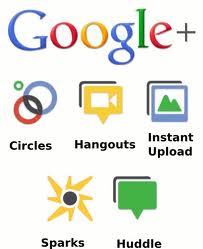
1. Basic Definitions of Google Plus Features as Circles, Hangout, Sparks
 Before starting about Google Plus Tutorials lets start with what is Google Plus Project and some basic definitions of its features. Just follow
What Is Google+?
Google+ is a tool you can use to organize your online
contacts. You can upload your pictures and videos to share with friends, join
in on a group video chat to plan your next outing, or just hang out!
- +Circles
Enable you to organize contacts
into groups for sharing across various Google products and services. Although
other users can view the list of people in your collection of circles, they
cannot view the names of those circles. Organization is done through a drag-and-drop
interface.
To understand Google Plus and
Circles better, go to the Settings Gear and select Profile and Privacy. Look
for "See how your profile looks to other users." Type in a user name
from different circles and click Preview to see what your profile looks like
from the specified user.
- +Sparks
 A front-end to Google Search,
enabling users to identify topics they might be interested in sharing with
others. “Featured interests” Sparks are also available, based on topics others
globally are finding interesting.
A front-end to Google Search,
enabling users to identify topics they might be interested in sharing with
others. “Featured interests” Sparks are also available, based on topics others
globally are finding interesting.
Sparks is a great way to find
information to help in your professional development towards building your
e-capability, all information is current and reliable.
- +Hangouts
Used to facilitate group video chat
(with a maximum of 10 people participating in a single Hangout at any point of
time). However, anyone on the web could potentially join the 'Hangout' if they
happen to possess the unique URL of the Hangout.
- +Huddle
Huddle is a a group messaging
feature available within the Google+ mobile app. Rather than sending text
messages to each person in a circle the user sends Huddle messages to the
group. This can be advantageous when trying to setup where and when to go out.
- Google+ Mobile

Accessing Google+ on one’s Mobile
Phone or Device (Currently Android and Web Only)
- Enable Push Notifications
Google+ mobile app -- Launch
Google+ on your phone, press the menu button and go to Settings. Enable or
Disable notification/vibration/ringtone for Google+ and Huddle notifications.
Google+ (plus.google.com) -- Click the ‘Options’
cog in the top right hand corner of the screen and select ‘Google+ Settings’. Under ‘Set delivery preferences’, add your
mobile number and choose Push Notifications or SMS Notifications. Then in the
‘Receive Notifications’ section, choose which notifications you would like to
receive by selecting the checkbox in the phone column for each item.

Getting Started with Google+
Tips
Google+ can be accessed from http://google.com/+ or
http://plus.google.com or http://google.com/plus or, for mobile device, from
http://m.google.com/plus.
To share Google+ posts click the “Time link” button and use the Google Shortener Extension for Chrome
browser and share posts to Blogger, Tumblr, Facebook and others.

Creative ways to use Circles
Create an “*Inbox”
circle and include the people you’d like to see every post from. The friends,
family, and acquaintances circles are on top by default.
Create a "Read
later" circle and include no other person (Google+ calls it an empty circle). When you see a post you want to
read later, share it only with the "Read later" circle. Then when you
have some time, open that circle and read through (and delete) the saved posts.
Similarly, create an (empty) "Drafts" circle. When you have an idea for a post, but no time
to write it, draft a rough version and share it to the "Drafts"
circle. Edit the draft by using "Edit
this post" from the drop down menu. Then, when the post is complete,
copy it to a new post that you can then share to your circles and delete the
draft post.
Yet again, create a similar (empty) circle called “Bookmarks” so you can go back and find
that tidbit of information to read and use again and again.
If you would like to mute
future notifications on a particular post you can do so by opening notifications,
then opening the particular notification you wish to mute. Look at the bottom
right hand corner of the notifications box. There will be an option to mute
that notification.
Formatting
Google+ uses the follow character operations to perform
italicizing, bolding, or striking through text:

_ italic text _ ➜ italic text
* bold text * ➜ bold text
- strikethrough text - ➜ strikethrough text
_*italic bold text*_ ➜ italic bold text
Formatting symbols only work when
the formatted string is encapsulated by spaces, therefore surrounding the
symbols by parentheses or brackets escapes the formatting.
[_ italic text _] ➜ [italic text]
** bold text ** ➜ *bold text*
_()(*- strikethrough text -*)()_ ➜ ()(*-strikethrough text-*)()
foo_*italic bold text*_bar ➜ foo_*italic bold text*_bar
**cough** ➜ *cough*
Shortcuts
Note: These
shortcuts apply to the desktop version of Google+ only.
@Anil Mishra or +Anil Mishra ➜
(press @ or + to link to a person in a post or comment) but they must be
a google plus member for this to work otherwise the hyperlink of their name
just turns into plain text.
After you post, click the little
drop-down arrow (▽) in the
upper right of the post to disable comments or disable re-sharing (i.e., for
things you don't want to spread beyond your specified audience).
Press “q” to go directly to the
chat box
Press , then
after writing a comment on a post to quickly submit it. (faster
than clicking the Post Comment button every time)
Press twice and then
to cancel writing a comment.
Press space to drop down a page.
(Applies to all web pages)
Press +space to move
up a page. (Applies to all web pages)
If you want to post directly to
specific friends, just type the first letter of their name, a drop-down list
will appear, keep typing until you see their name, then select the name and
click to send message or begin chat. Alternative quick step, if necessary,
click to remove existing “addressees” (i.e. Public, Circles, etc) so that the
post is addressed to no one. The in the message area using the + or @ technique
described above, start typing their name until you see it, select it, and it
will then be included in the message as well as the addressees.
While moving through posts using
‘j’ (next post) and ‘k’ (previous post), you can start a comment by pressing .
Use the mouse scroll wheel to
navigate through photo slideshows
Privacy

A core element of Google+ is its
privacy features, which have been integrated deeply into the product. Google+
gives users extensive control over these features.
Click edit in your profile to
change which circles can view what personal details. Your name, gender, and
profile picture have to be public, everything else can be restricted. You can
also opt out of appearing in the search results here.
If you would like to send a
message to another user, just put their name into the destination field of your
posting. If the recipient is not a user of Google+, enter their email address.
To save typing the email address every time, you can add them as a contact on
the circles page.
If you want the permanent link to
a post, click on its timestamp to see the single post. You can copy the URL
from your browser to share the permalink (alternatively, you can select “Link
to this post” from the drop-down menu at the top left of the post)
You can link directly to your
profile using http://profiles.google.com/.
There are also non-official
shorteners that use the profile number you can find when viewing your profile.
(For example go to http://gplus.to/)
To understand Google Plus and
Circles better, go to the settings gear to Settings -> Profile and Privacy.
Look for "See how your profile looks to other users." Type in a user
name from different circles and you will be able to see how your info is shared
according to those circles.
There is a shortcut for this
under the EDIT PROFILE button on a
user’s profile page. It’s a greyed-out “View profile as....” box. Click on each
section to see how each person or circle will view each area: About, Posts,
Photos, Videos, +1s, Buzz

1.
Google+ Tips for Send/Receive Tweets in Google Plus
If you want to twitter integration as sending
tweets and showing your twitter updates into your Google Plus account then you
can easily integrate your Google Plus account with twitter. you don't need to
leave your Google Plus account for sending tweets or showing your updates of
your twitter account. Just follow Send/Receive
Tweets or Show Twitter Stream in Google Plus.
2.
Google+ Tutorials for send/receive facebook updates in Google
Plus
Now after twitter integration you can integrate
your facebook account in your Google Plus account. You don't need to leave your
Google Plus account if you want to post any update in your facebook or you want
to see your facebook stream updates. Just follow Show
Facebook Stream and Updates Facebook Wall from Google Plus.
3.
Google Plus Tips for Bold/Strikethrough and Italic Text
Different text formatting are always eye
catching for your friends and for your customers so get noticed to some words
for making it bold/italic or strikethrough. Just follow Make text
to Bold/Italic/Strikethrough in Google Plus.
4.
Google Plus Tips and Tricks for Sending Private Messages
Did you find any option for sending private
message to your Google Plus friends? No. Ok some tips is required for sending
private messages in Google Plus to your friends. If some one send you private
message then you will got these messages into your main stream page and the
message will be seen only by you. So just follow Sending
Private Messages to Friends in Google Plus.
5.
Google Plus Tricks To Get Google Plus Notification Updates on
Mobile Phone
Do you want notification if some added you to in
circle or if some one write comments on your updates or anything what you check
options to getting notification on your mobile phone. Just follow Google
Plus Updates Notification on Mobile Phones.
6.
Google Plus Wall Status Updates By Mobile Phones via SMS
Now if you are an Indian users then you can send
Google Plus updates via SMS from your mobile phones and also you can send
updates to individual circles. Hope this features will be launch word wide
soon! So for Indian users just follow Get
Google Plus Updates from Mobile via SMS Text.
7.
Google Plus Tips for Adding Google+ Widget To Blogs
Are you a webmaster? Have you any blog? If your
answer is yes, then by adding Google+ widget to your websites or blogs you can
increase your Google Plus connections so for adding Google+ widget for your
blogs just follow Adding
Google+ Widget To Blogs.
8.
Google+ Tutorials:Sharing your wall updates to directly
facebook, Twitter, LinkedIn, Tumblr
You can now share your Google Plus wall updates
directly to facebook, twitter, linkedin and tumblr. Your each updates will
contain a button of "Share on..." and if you click on then you will
see option to share. This is all have done by a chrome extension so you have to
use chrome browser if you want this option. Now if you are on chrome browser
and want to enable this feature then just follow Share
Google Plus Wall Updates To Facebook/Twitter.
9. Downloading Google+ data as friends contact, albums, videos
to desktop
If you want to secure your Google Plus data as
your albums, your uploaded videos or your friends contact, your stream data and
your profile data to your desktop hard drive before being hacked by some one.
Just follow Download
All Google Plus Data To Desktop Hard Drive.
10. Google Plus Tips To Move Facebook Album Photos To Google Plus
Have you many photos in your many albums and want
all photos in your Google Plus Profile. It is very difficult to save all photos
to your desktop and then upload these to your Google Plus Profile. A Chrome
Extension is there for easily move your facebook photos to your Google Plus
account with some clicks. You have to be on chrome browser if you want to move
your facebook albums to Google Plus by just simple clicks. Just follow Move
Facebook Photos To Google Plus Account.
These Google Plus Tips and Tricks are regularly updated so get back after some days to this post you will see some more Google Plus Tutorials. If you want to get updates on Google Plus then you can get noticed by bookmark this page, Add me in your Circle on Google Plus and you can Be My Fan on Facebook and follow us on Twitter or simply get updates directly to your email address just verify your email address with us for SubscribeMy News Later.


 Posts
Posts


.jpg)


.jpg)


